
You can make your Help Center available in multiple languages by adding additional languages and translating your articles from your primary language.
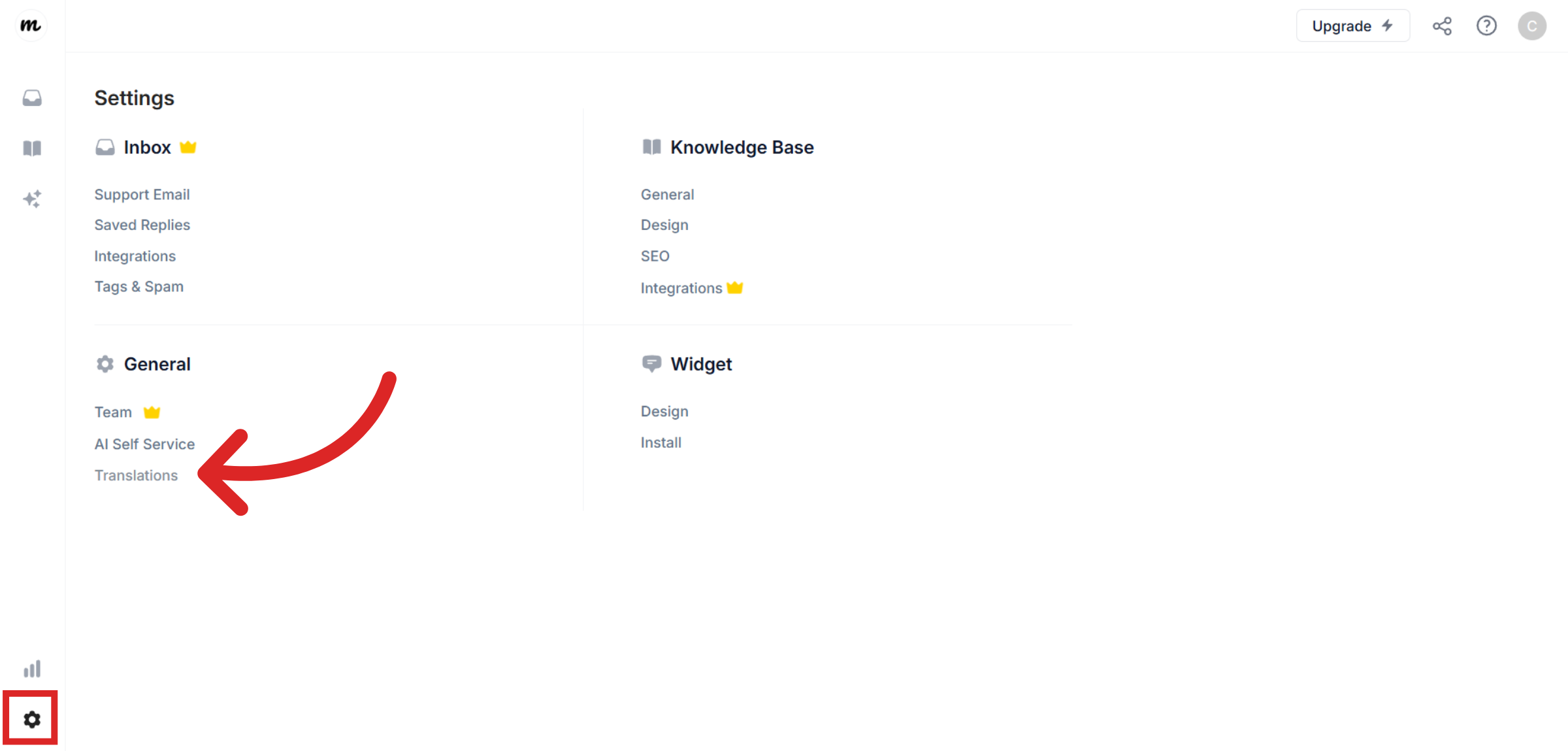
Go to Settings
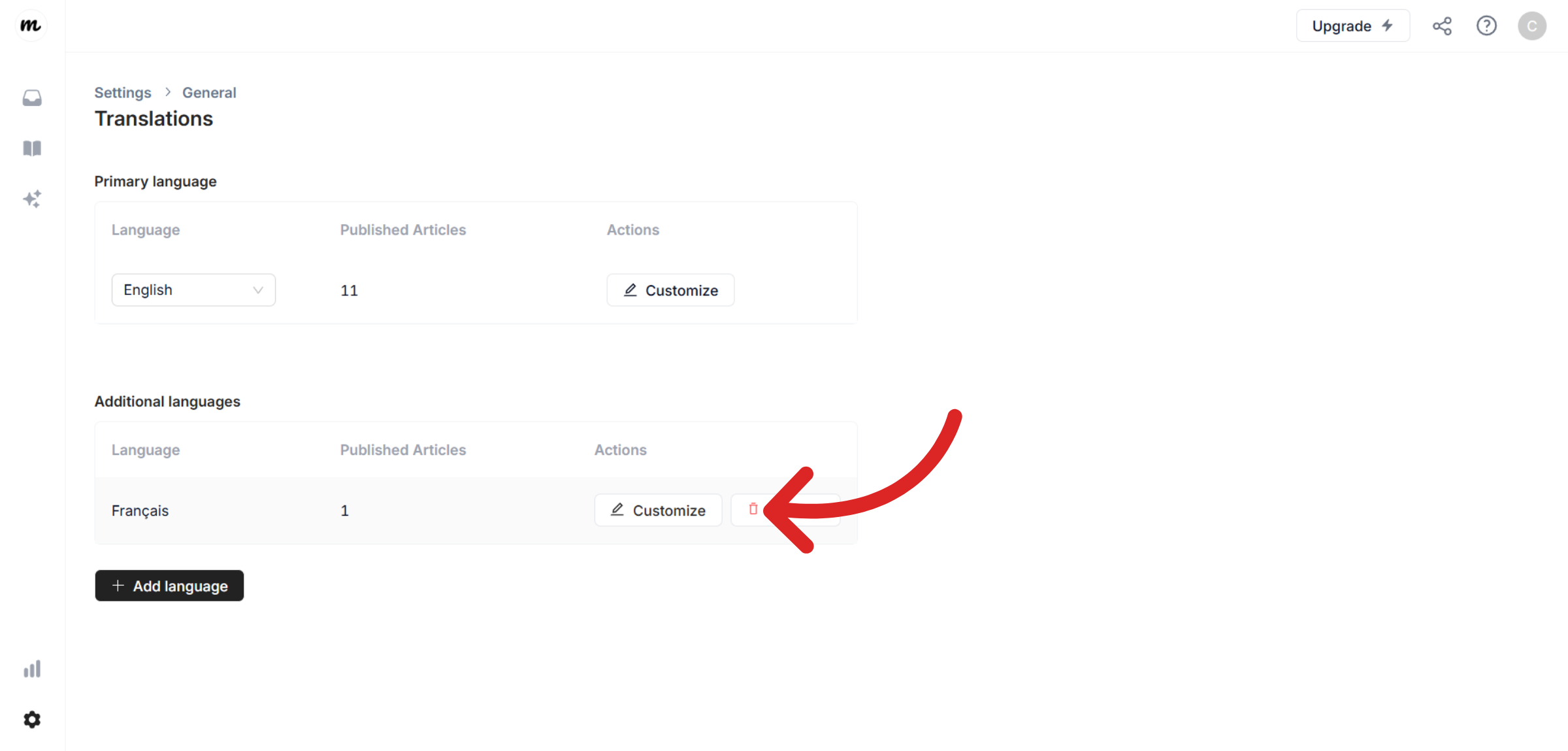
Go to Settings, navigate to General and then click on Translations.
Add new language
By default, English is set as your primary language, but you can add and manage other languages anytime.
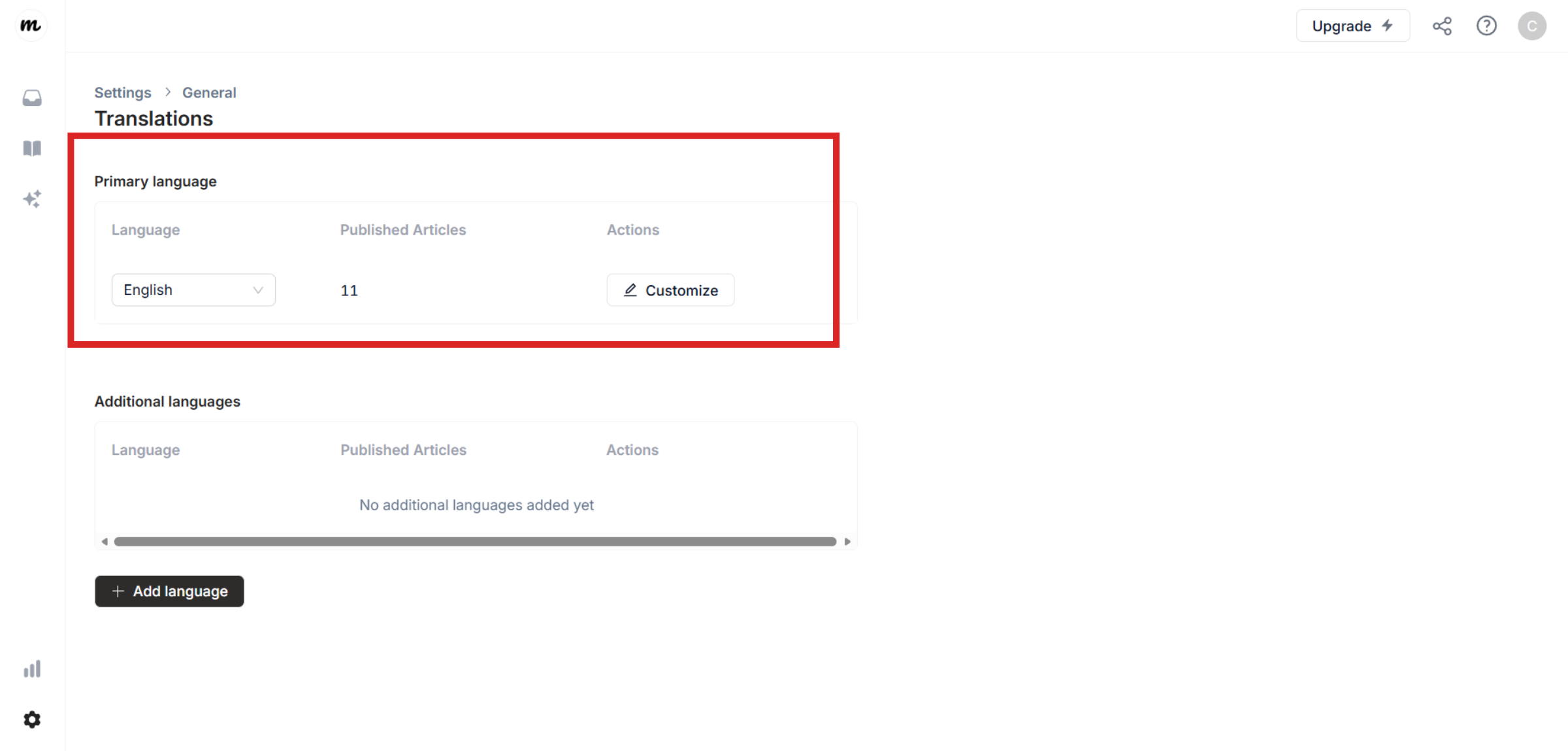
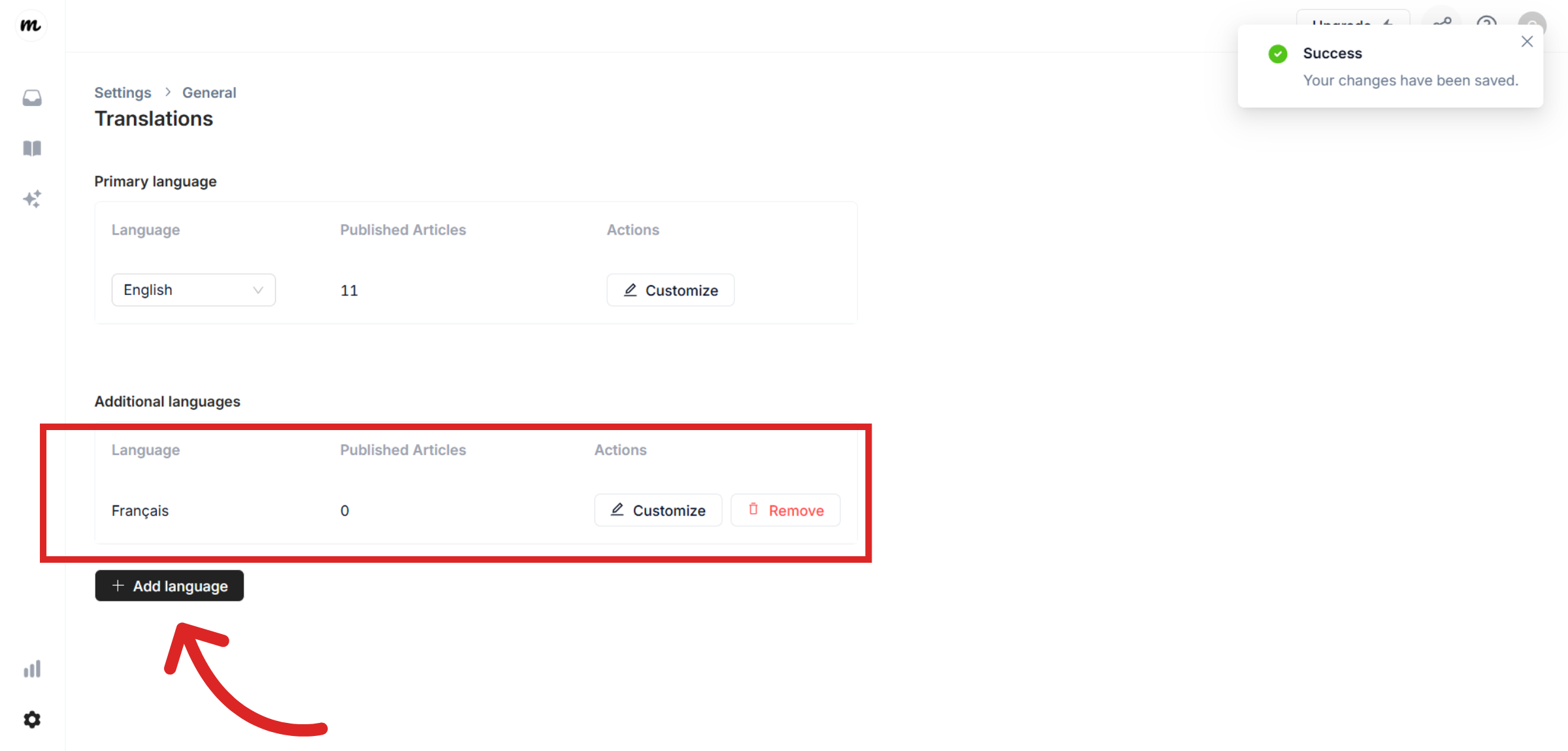
Under Additional languages, click Add language. In this example, we've added French as our new language. Once added, your Help Center will support the new language.
Open Help.Center
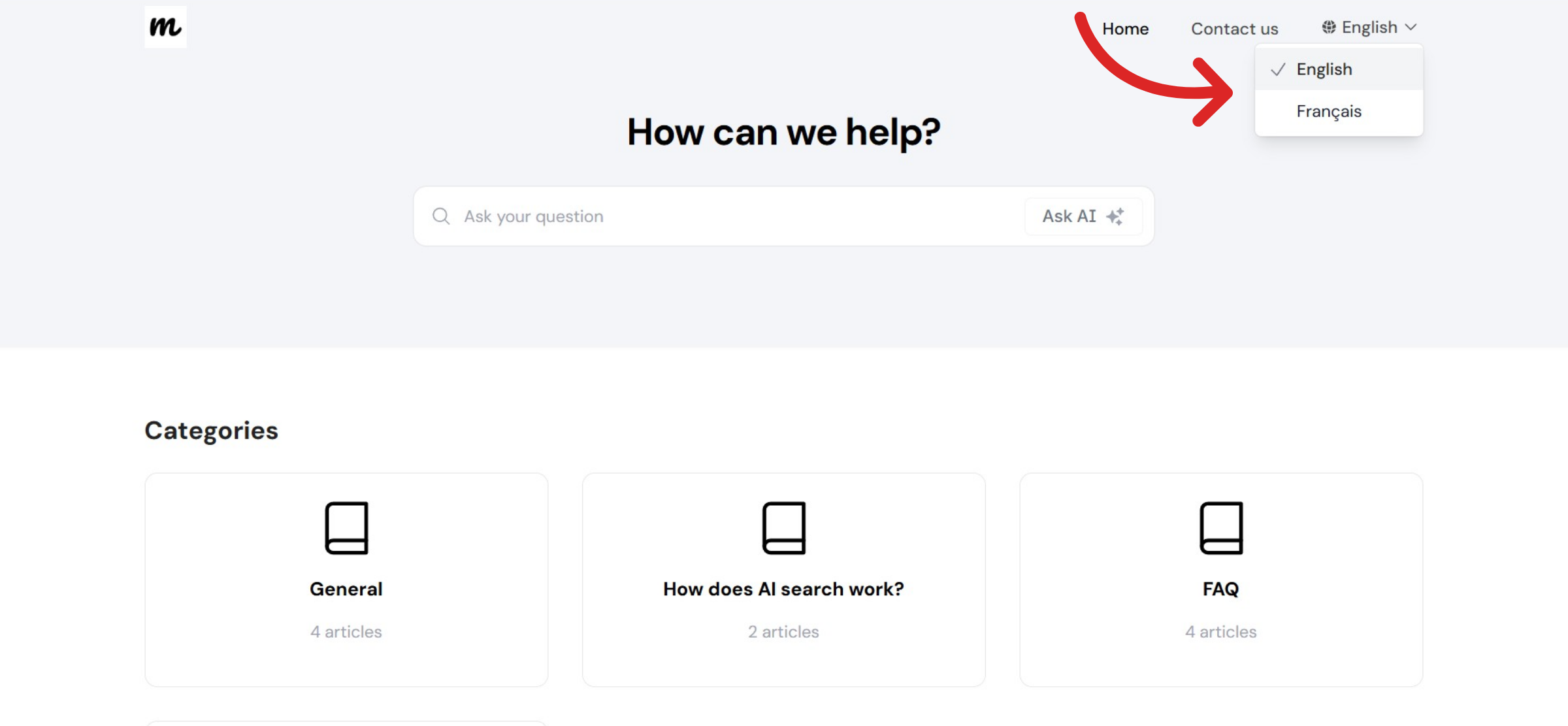
Go to your Help Center website. You’ll now see a language switcher in your knowledge base.
Translate your articles
Go to Articles in your dashboard and switch to the newly added language.
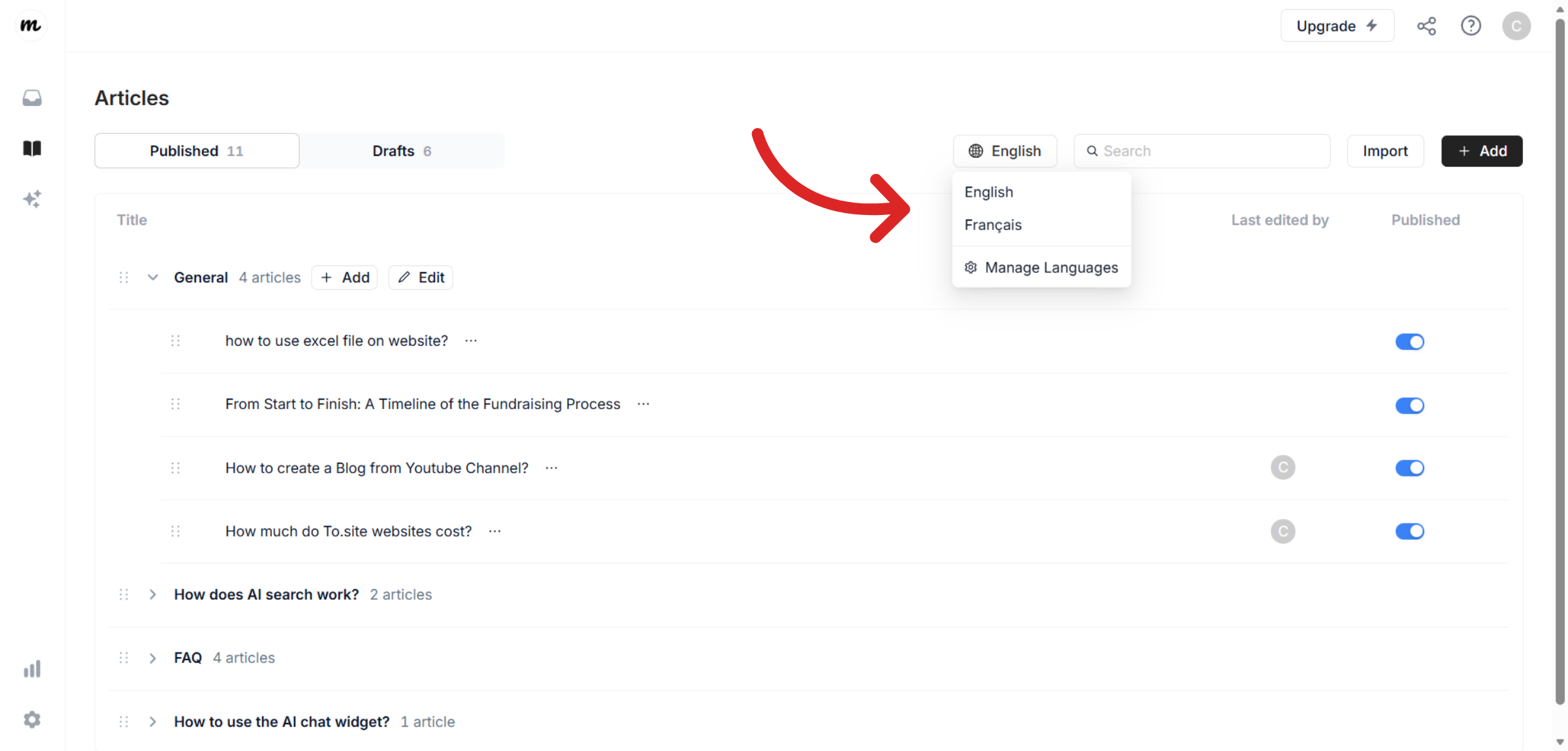
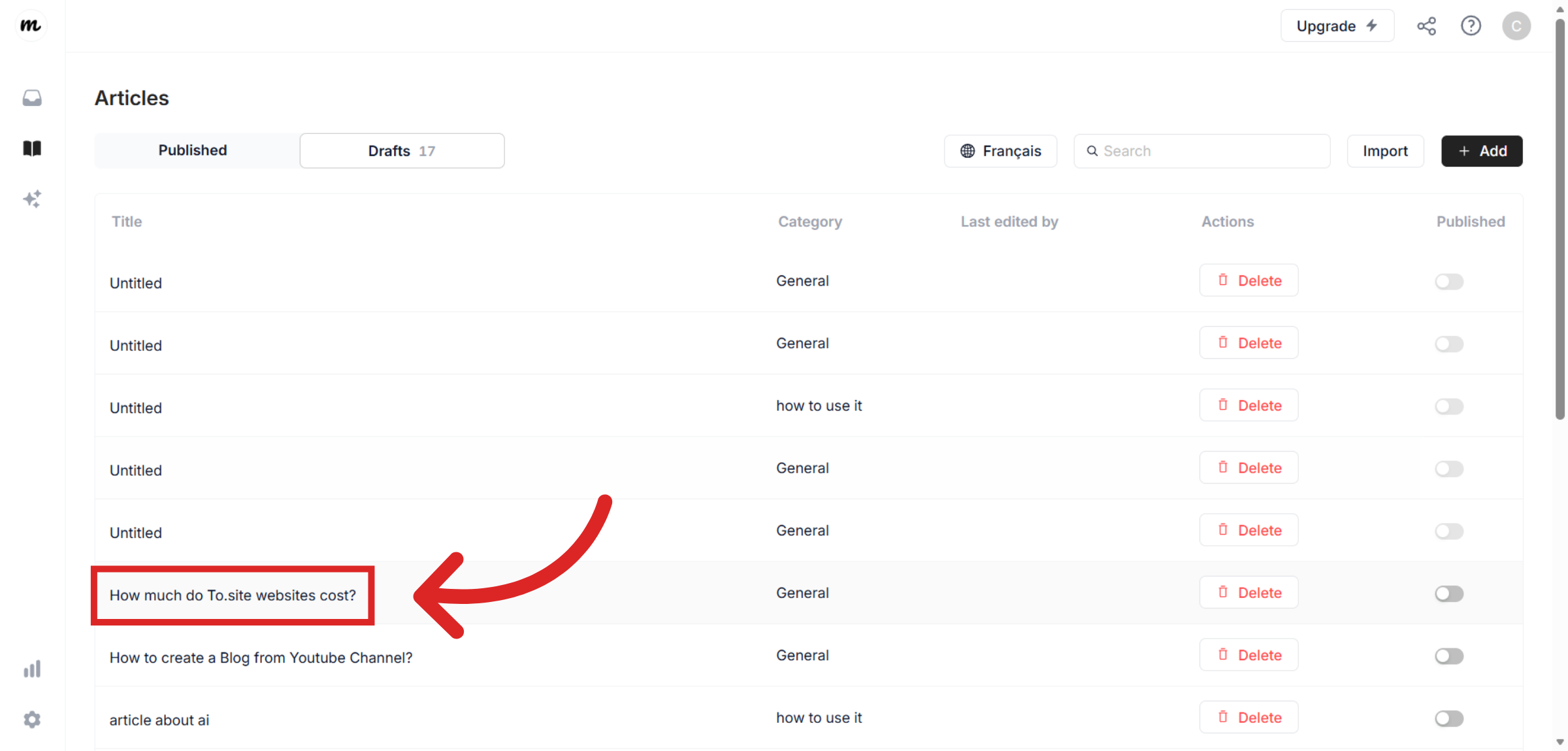
At this stage, no articles will be published in the new language yet. You’ll see that all existing articles are in Draft status. Let's click on an article.
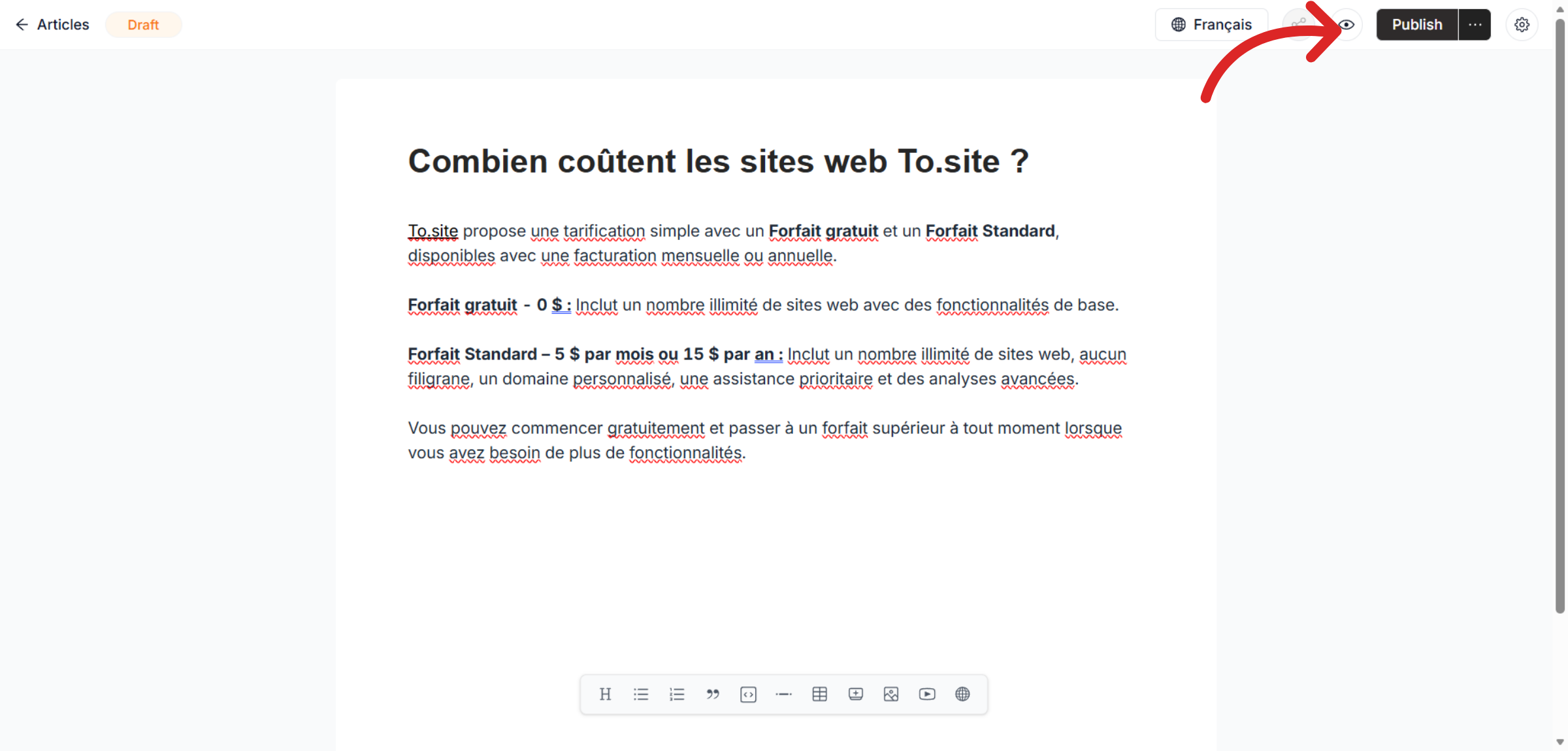
When you open this article for the first time, Help.center will automatically translate from the article from the primary language, into the new language (French selected here).
This might take 10-20 seconds depending on the length of the article. After that, you can review the AI-generated translation and if everything looks good, click on Publish. Repeat these steps for each article you want to publish in the new language.
Translate category names
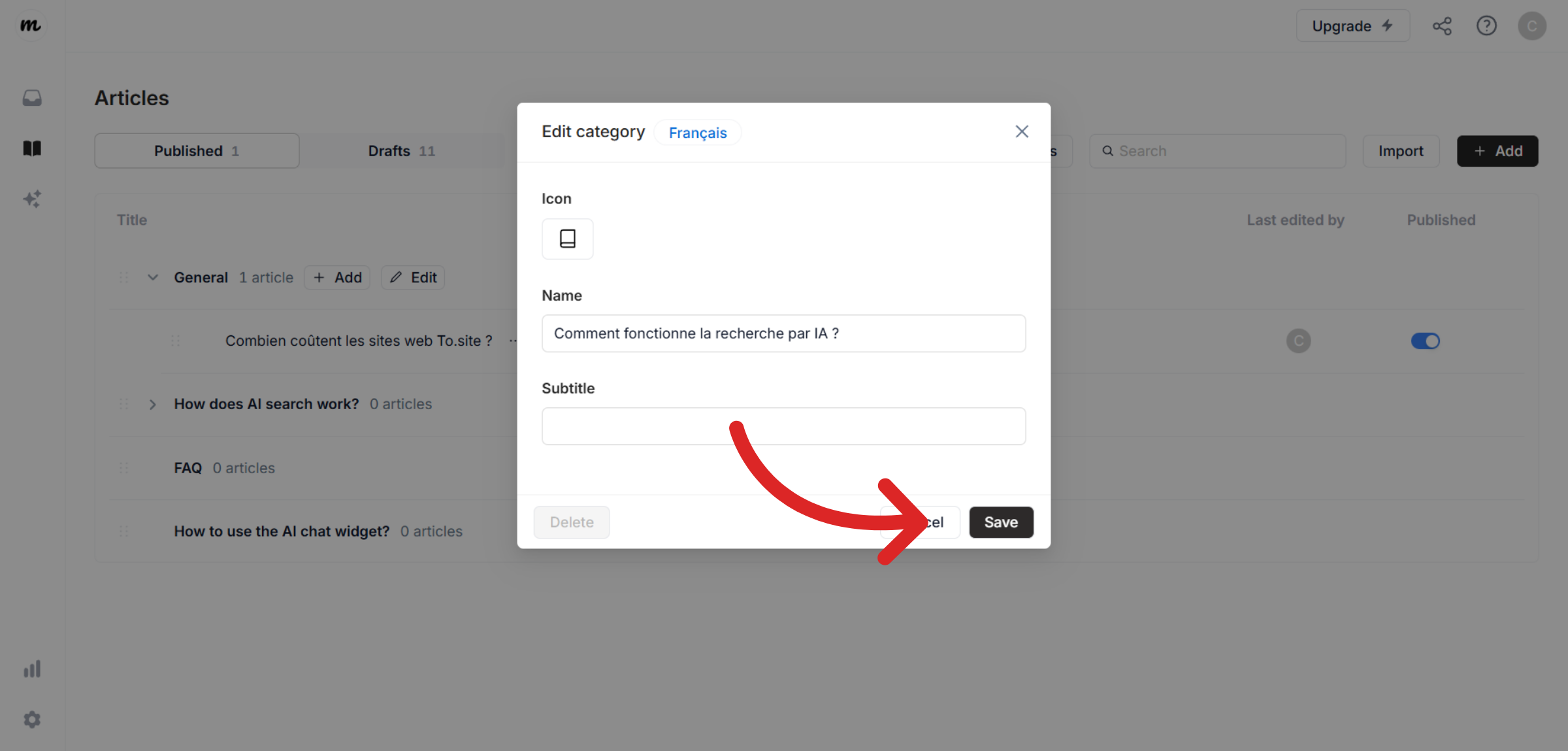
Category names are not translated automatically. To translate categories, please click the Edit button next to the category.
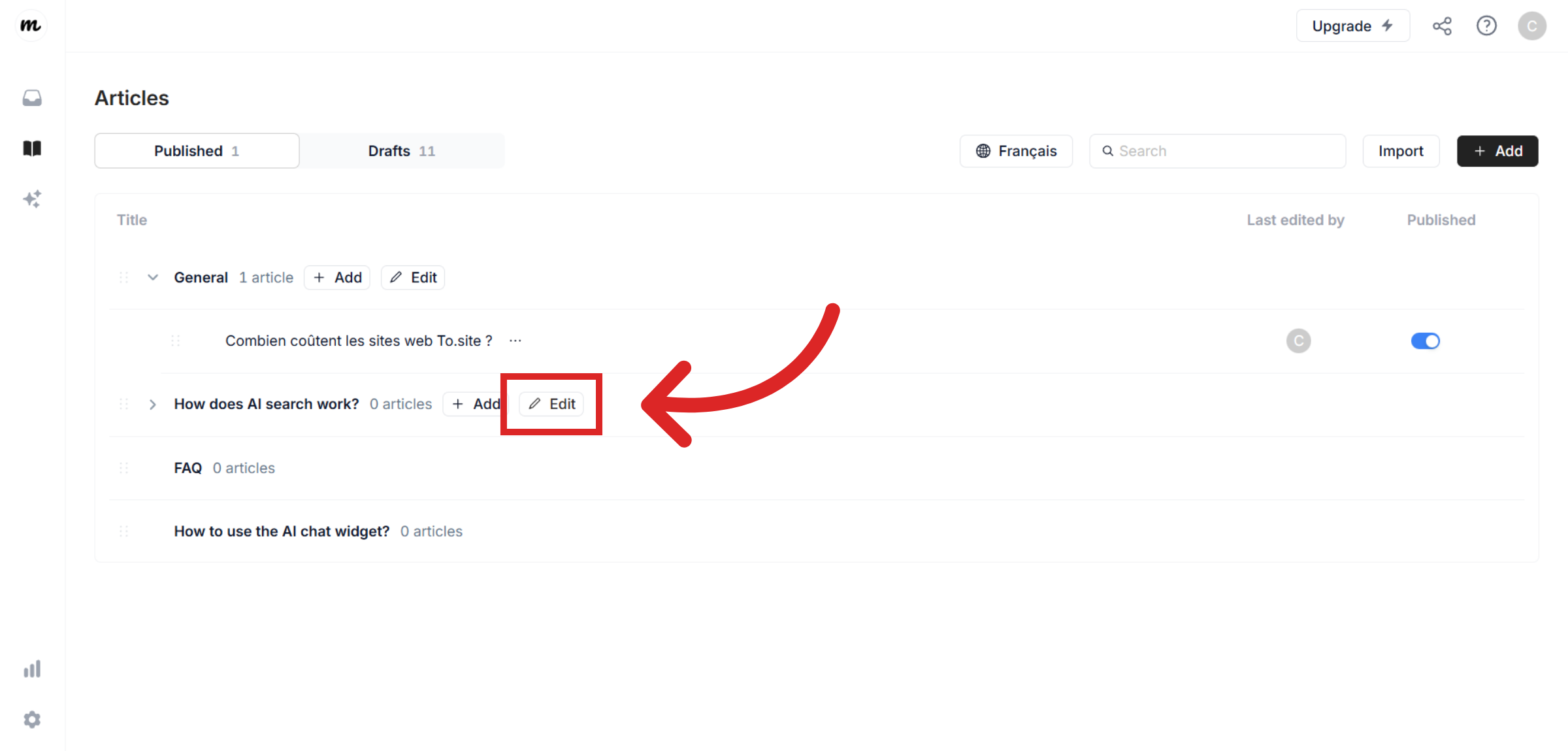
Manually update the category name and subtitle to the new language and save your changes.
Additional tweaks
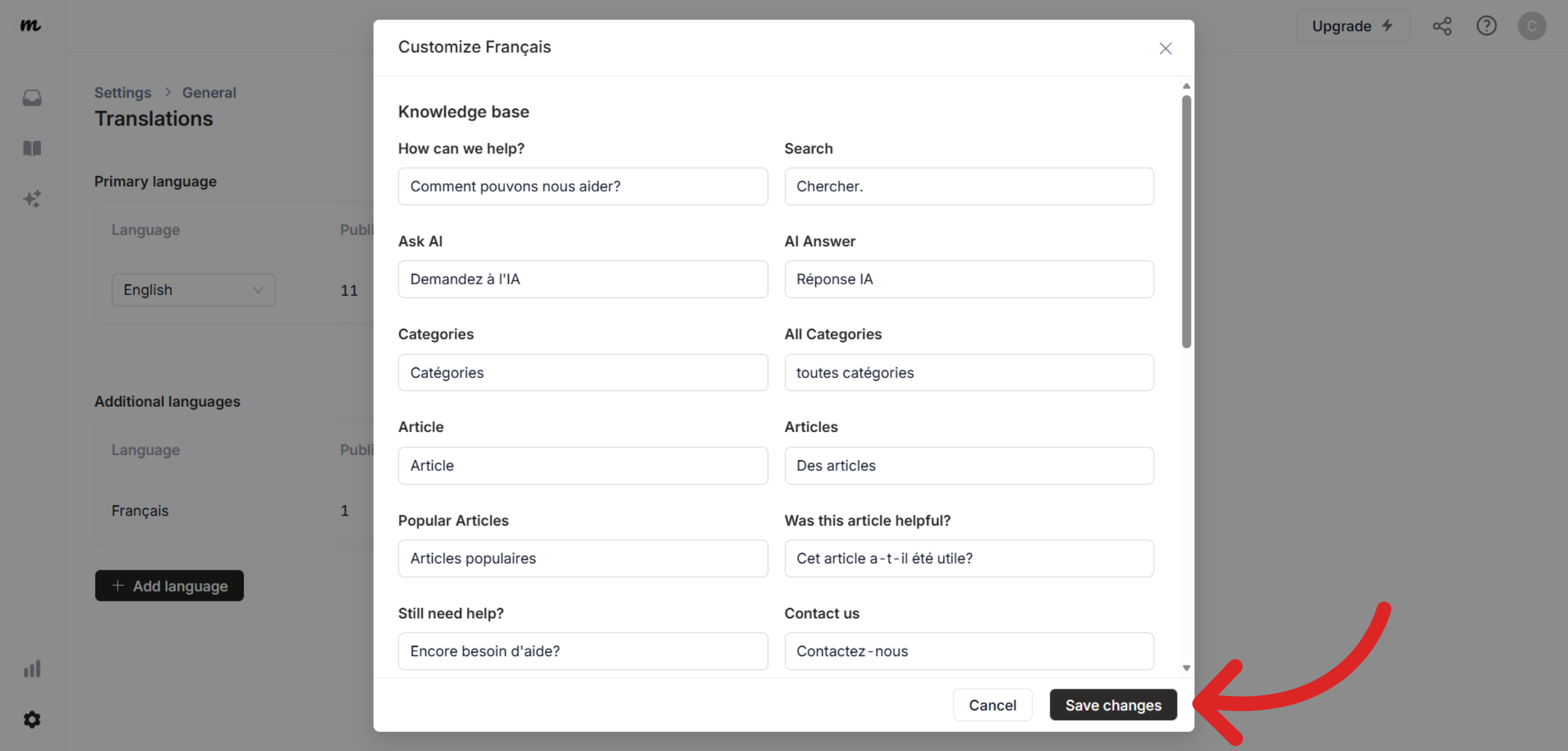
You can also customize translations for your Help Center interface. Go back to Settings > Translations. Click Customize next to the language you added.
Here, you can edit text for the widget and knowledge base components as needed. This allows you to fine-tune the wording to match your brand and tone. Don't forget to save your changes to complete the process.
Still need help?
Contact us